

Module 6: Is Your Workspace a Pain In The Neck?
This module will save you from making some of the biggest ergonomic mistakes and will address discomfort in the head, neck, upper back and shoulders.
I cannot count the number of people I see who struggle because they try to “fix” their monitor height by raising or lowering the desk or chair. Monitors are near the end of the check-off list for a reason. If you try to adjust monitors first, you will likely have to go back and readjust them again at the end. Your chair, desk height and arm angles must be properly adjusted FIRST so that you can make your monitors fit YOU and not the other way around.
A message for full time laptop users:
 Are you using a laptop computer all day without an external keyboard and mouse?
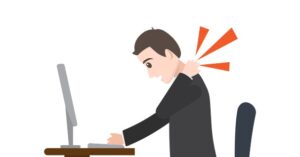
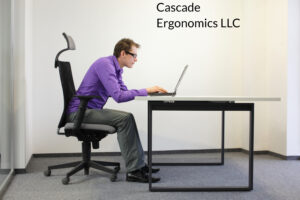
Many laptop users will go on to develop such severe discomfort that they can no longer work exclusively on a laptop. Laptops sacrifice one adjustment for another: You either tilt the neck downward to view the screen or reach uphill to type on a raised laptop. Either the neck area suffers, or the arms and wrists suffer. It’s a lose-lose situation that takes its toll on your body.
Solutions for those working exclusively on laptops
- Screen Height: Raise the laptop so that the upper 1/3 of the screen is at eye level. You may use books, paper reams or a laptop riser. You can even dock your laptop to an external monitor if you prefer a larger screen.

- Wrist, Forearm, Elbow Posture: Add an external keyboard and mouse so that you can type with level forearms and wrists (Avoid uphill reaching).
- Movement Breaks: If you choose to work exclusively on a laptop, then at least be aware of the stress on your body and take frequent movement or counter stretching breaks 1-2 times per hour. Be aware of any increase in discomfort so that you can take immediate action listed above.
Setting up Monitors Correctly
Holding your head up all day long is not an easy task! Let’s start with a few workstation basics to get you set up correctly and then we will dive into dual or multiple screen use.
Did you know that monitor positioning is dependent on the screen size, font, resolution, types of tasks and user vision?
Proper Posture First
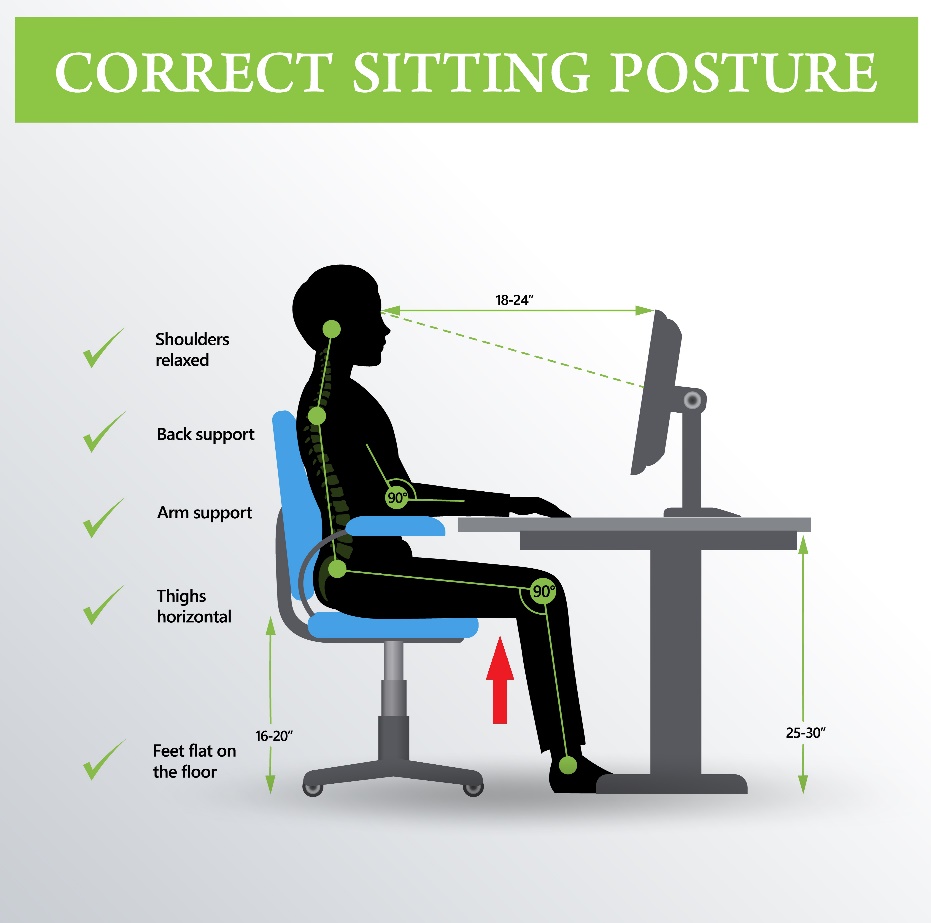
- Be sure your chair, desk height and arm angle are all properly adjusted to better support your spine and neck
- Tilting the neck up or bending the neck down too far may lead to discomfort or headaches over the course of the day
- Avoid sitting with a forward head posture or perching for hours on the front edge of your seat to better view the screen.
A note on breaking old habits and creating new ones:
The adjustments mentioned above, along with proper monitor adjustments and backrest support will go a long way in helping to break old postural habits. Setting a timer or alarm at 20-30 minute intervals can serve as a reminder to check posture and take movement breaks all at the same time. There are also helpful apps and devices that vibrate or blink to serve as reminders. See more on this in module 10.
Screen Height
- The top line of the screen should be level or 2-3″ below the eyes.
- Avoid upward tilting of the neck even a few degrees as this can place significant stress on the neck joints and lead to headaches.
- It is OK for the neck to tilt a few degrees downhill when viewing the top of the screen but not uphill.
- NOTE: People with Bifocals may have to lower the screen a couple more inches to prevent upward tilting of the neck when reading through the bottom half of their lenses.
Screen Distance
- The screen should be at least an arm’s length away (18”-34”) or slightly farther.
- If you tend to lean forward to view the screen, like many others do, move your monitor(s) closer and be sure to correct your neck posture.
- However, moving the screen too close increases eye strain.
- If the screen is still hard to read after moving the monitor closer, try enlarging font size.
Screen Tilt
- The screen should be tilted backward slightly if possible or vertical
- Tilting the screen slightly may improve ease of scanning for the eyes and reduce neck tension
Dual Monitors
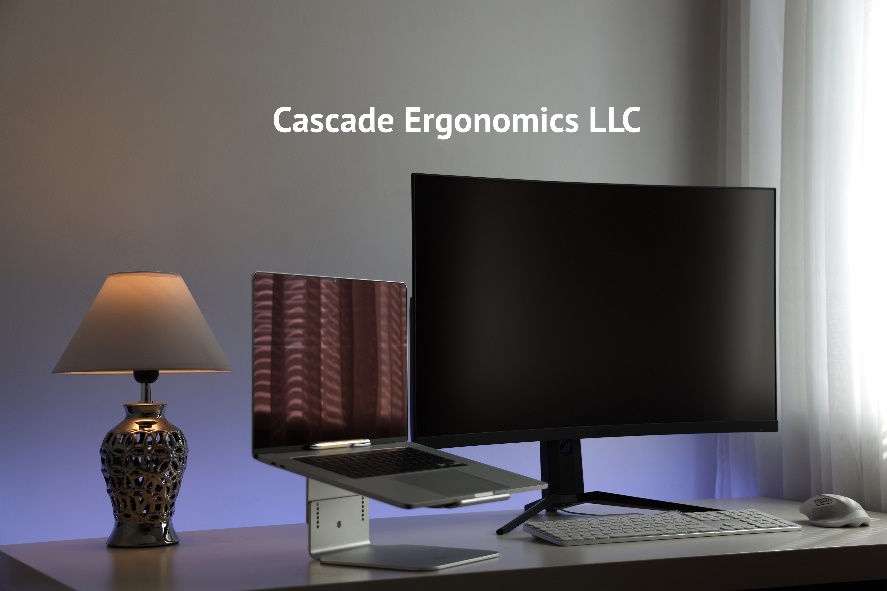
- Sizes: It is best for eye comfort to use two identical monitors of the same size and model when possible.
- Types: However, many workers are comfortable using different monitors or a monitor/laptop combination.
- Height: If using a laptop, make sure it is raised on books or a riser to the proper height. It should be close to the height of your larger monitor but does not have to be exact.
- Position: How you position dual monitors depends on the amount each monitor is used (see below).
Main Monitor Centered
- Main Monitor: If you use a larger monitor for most of your work (70% or more) and a second monitor or laptop for a smaller amount of work (30% or less), position the large monitor and your keyboard directly in front of you.
- Second Monitor: Position the second monitor off to one side and angle in slightly toward you. This way, at least 70% of the time, you will be looking directly ahead and only rotating to view the second monitor occasionally. This will help to protect your neck from too much rotation.
- Counter-Stretch: You can also occasionally stretch your neck to the side that does not have a monitor to help balance out the stress.
- Heights: Again, try to keep monitors at similar heights.
Dual Monitors Used Equally
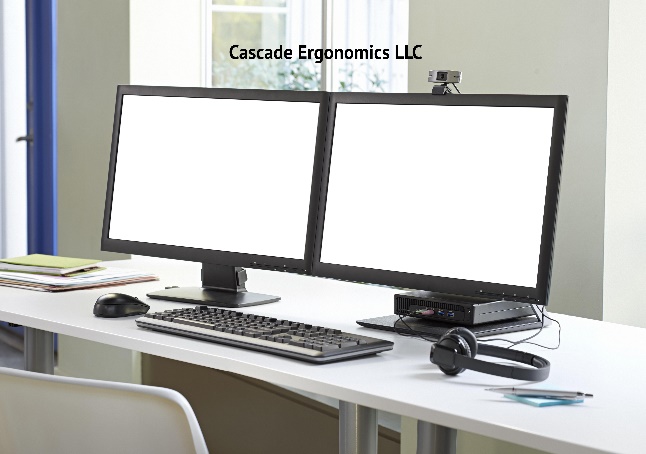
- If you plan to use both monitors more equally, then center the two monitors and keyboard directly in front of you.
- Position: Keep the edges close together without a large gap. This way, your neck never has to rotate fully to one side or the other to view a screen.
- Types: It’s OK to use a large monitor and laptop for this kind of set up.
Multiple Monitor Use
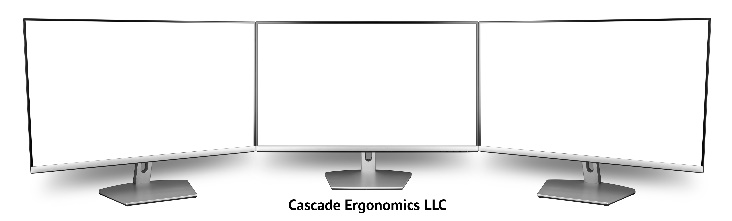
- Center Monitor: Center the monitor that you will spend the most time using.
- Keyboard: Line your keyboard up with the center monitor.
- Secondary Monitors: Place a secondary monitor on each side angled in slightly. This way you can spend more time using the center monitor or use all three screens equally.
- Laptop Screen: If using a laptop as one of the secondary monitors, be sure to raise it to the proper height and angle in slightly.
Another Multiple Monitor Option:

- Another option is to center two main monitors directly in front of you and also center your laptop directly below the main monitors.
- This method is not ideal and should only be used to occasionally check emails as it causes the neck to bend downward.
- Recommended: A preferred solution is raising the laptop on a riser and placing it on one side of the center monitor as mentioned above.
Vertical Monitors
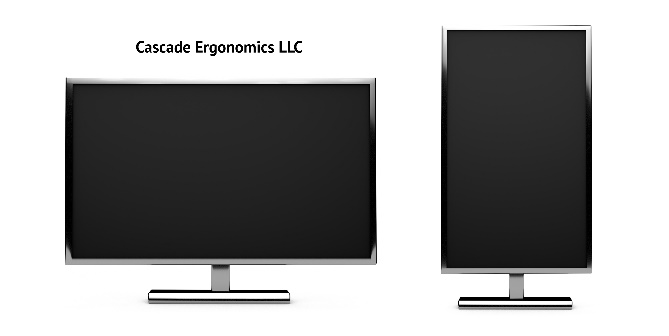
- Turning monitors vertically has become a popular way of creating more screen space at a workstation. However, the taller height can cause the neck to tilt upward leading to neckaches and headaches.
- For vertical monitors, try lowering reading material toward the middle of the screen so that you do not tilt your neck upward.
Adjustable Sit-Stand Desk Monitor Height
- Monitor heights should be very similar when using a standing desk.
- However, you may notice that when moving from sit to stand, the monitor height seems a few inches lower. That is true since your waist lengthens when you stand.
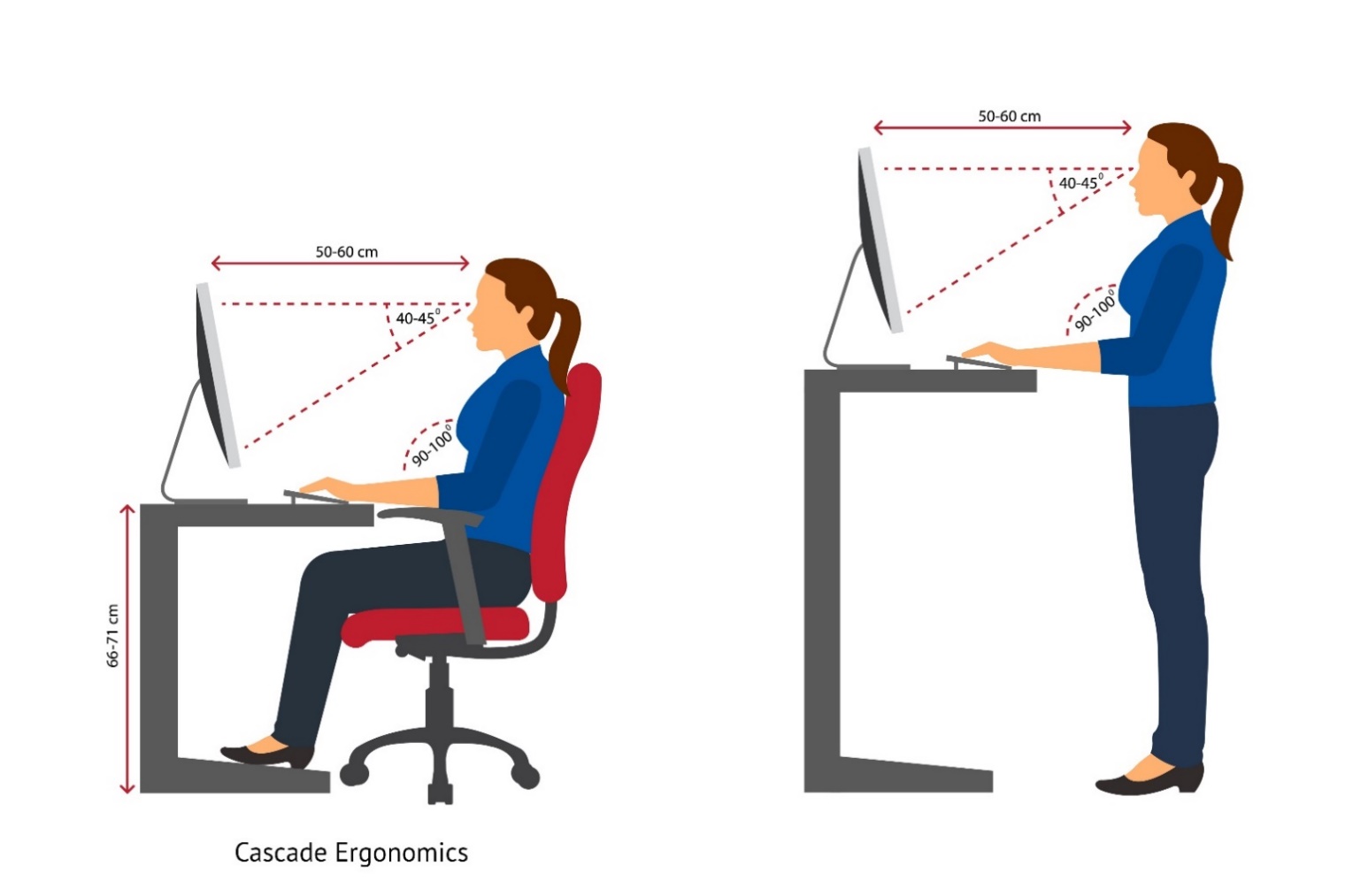
- If you stand for short periods of time, this should not be a problem.
- It is best to make adjustments to monitors in a sitting position as most of your work will likely be performed in this posture.
- The very top line of the screen should be adjusted to eye level with minimal downward tilting of the neck.
- This way, when you change to standing, you will only notice a slight drop in the screen height from eye level.
- If you start with a lower sitting screen height, then the screen may feel much lower when you stand.
- Adjustable monitor arms are a nice option for raising monitors slightly when standing.
| Problem | Description | Solutions |
| Frequent headaches and neck stiffness/soreness | May be caused by looking up at the screen May occur when wearing bifocals that cause upward tilting of the neck to read out of the bottom half of the lenses. May be caused by looking downward frequently 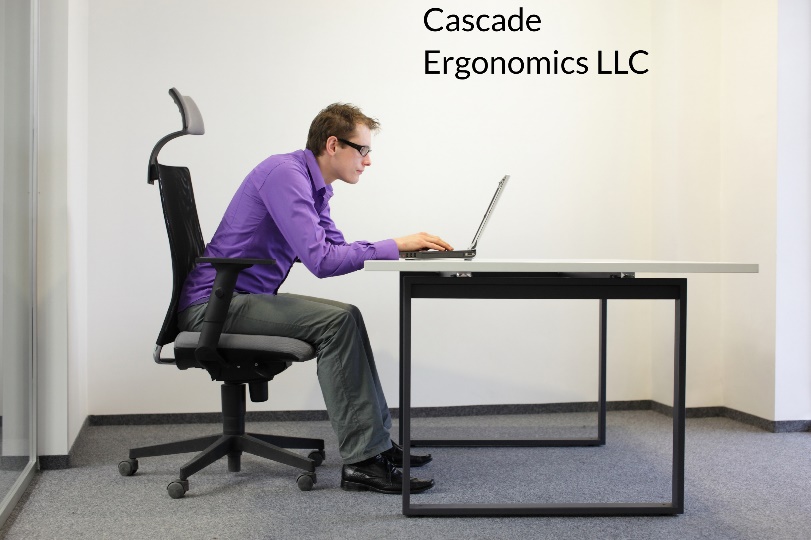 May be caused by rotating the neck to one side most of the day |
|
| Monitor too high | May lead to headaches, stiffness, neck pain or numbness down arms from looking up |
|
| Monitor too low | May lead to stiffness and soreness at the neck, upper back and shoulders from looking down |
|
| Monitor too far away |  Causes forward head posture and forward leaning to view screen. Causes user to scoot forward in the chair and work without back support. |
|
| Monitor is too close | A small desktop may not have enough room to move monitors an arm’s length away from the user.
Can also be a problem with extra large monitors. |
|
Healthy Neck Tips:
Refresh
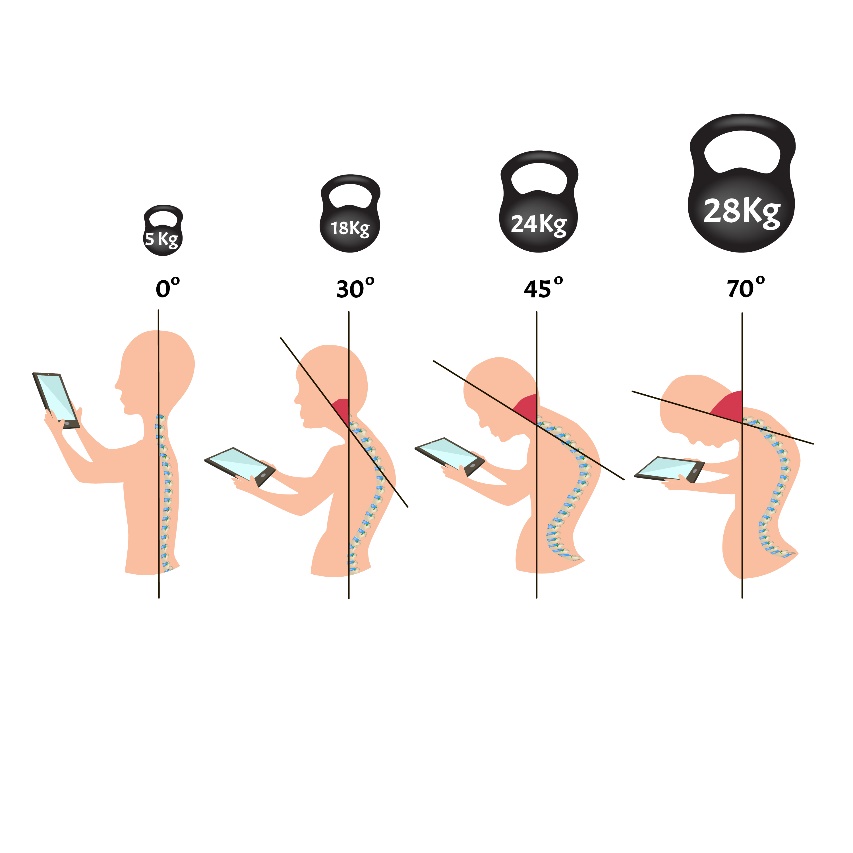
Computer work causes day long neck fatigue and tension. To avoid stiffness and soreness, take frequent movement or stretching breaks, a minimum of 1-2 times per hour. It helps to stand up, walk, turn your head and neck, stretch or take a break. More on this later!
Tech Time
What you do outside of work adds to the neck stress you already encounter at your desk. This includes cell phone use, tablets, laptops and hobbies that require you to look down. Most people have no idea how much time they actually spend on electronic devices outside of work. Treat yourself to the blog article, “What the Tech” for healthy neck tips. https://cascadeergonomics.com/what-the-tech/
Let’s move to the next module and take care of your eyes!