

Module 4: The Key To Comfort Is In Your Hands
It’s easy to forget the thousands of rapid, repetitive motions at the hands, wrists and fingers during a typical workday. No wonder so many people experience discomfort from typing and using a mouse. All it takes is a slight postural deviation to upset the body’s ability to work under this kind of stress and to cause pain or injury. That’s why fine-tuning posture is so important! And the equipment available nowadays makes it easier than ever.
Steps to Proper Hand and Wrist Posture:
Keep wrists fairly level when typing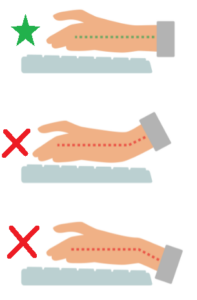
- Posture: Make sure the chair and desk are adjusted to the right heights. Elbows should be bent approximately 90-110 degrees, forearms should be level with the keyboard and wrists should be fairly straight.
- Wrist Support: If needed, add a small wrist rest to cushion the palms and to help keep wrists level with the keyboard.
- Typing Technique: Try not to “plant” wrists on the desk or wrist rests when typing. Instead, practice typing with very little pressure at the palms. This is referred to as floating and may take a little practice. Wrist rests can provide support when your hands are resting.
- Keyboard Legs: Once you have achieved proper posture, avoid elevating the legs on the back of the keyboard. The keyboard should also be level.
Most people do not realize that keyboard legs are used to compensate for posture that is not ideal. These legs only help to keep wrists straight when a person is unable to avoid reaching uphill to the keyboard. Remember that reaching uphill increases stress at the wrists, forearms, shoulders and neck so keyboard legs are not a good long-term solution.
Keep wrists straight when typing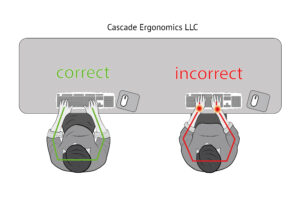
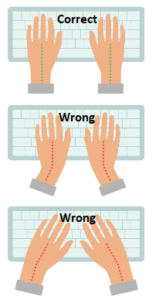
Individuals with wider frames reach in more from the sides to type and may have to rotate their hands inward or outward to fit a standard keyboard. These awkward arm and wrist angles can become uncomfortable.
- Workers using armrests that are too wide may experience the same awkward postures and discomfort as those with wider frames.
- Ergonomic keyboards are designed to adjust to wider arm and shoulder widths for improved posture and comfort.
Standing posture
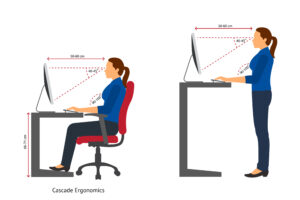
- Shoulder, arm and wrist posture should look the same as sitting posture
- Relax shoulders and keep elbows in at your sides
- Elbows should bend approximately 90-110 degrees
- Wrists and forearms should be level or slightly downhill to the keyboard
| Problem | Description | Solutions |
| Wrists bend backward when typing | Backward bending causes stress to the wrist, forearm and elbow. It compresses sensitive tissues over the carpal tunnel leading to pain and possibly numbness in the wrist, hands and fingers.
|
|
| Wrists flex/bend downward when typing | When forearms reach uphill to the keyboard, wrists are forced to flex/bend downward to type. This causes stress at the wrists and constriction at the carpal tunnel. The front edge of the desk may also press into the wrists. |
|
| Hands turn inward or outward when typing | Can be caused by wider shoulders, body or armrests causing arms to reach way in from the sides. Hands have to rotate to fit the keyboard which can cause discomfort.
|
|
| Hands remain painful when typing | Can occur from chronic overuse conditions or arthritis |
|

Ergonomic keyboards
There are different types of ergonomic keyboards to choose from. “Ergonomic” means they are designed to allow more neutral and comfortable positioning.
Features that make keyboards ergonomic:
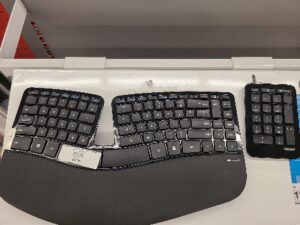 Comfortable, built-in palm rests (optional on some)
- Split keyboard that allows users with wider frames to keep wrists straight
- Tenting (sloping) of the keyboard to allow a slightly relaxed forearm position
- Some have removable numeric pads that allow the mouse to sit closer to the body
Keep in mind that some keyboards claiming to be “ergonomic” have little more than a built-in palm rest and do not offer much in the way of ergonomics.
Some facts to know before investing in an ergonomic keyboard:
- Some are very easy to use.
- Others have a learning curve that can slow you down.
- Some can be adjusted to fit most users.
- Other models do not adjust and only fit certain users
Note: Photos and links are provided as examples only and are not intended to recommend one product over another.
Types of ergonomic keyboards
Fixed split-angle keyboards: Many brands (not adjustable)
Pros:
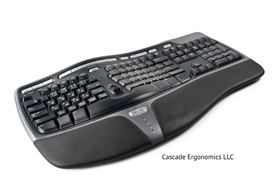 Best for workers with wider frames who reach in from the sides to type
Cons:
- Width cannot be adjusted
- One size does not fit all workers
- Not usually preferred by those with narrower frames
- Have the largest learning curve due to the angle of the keys
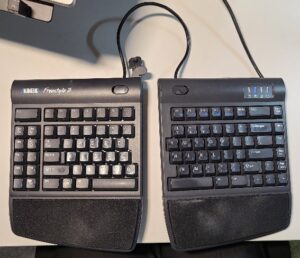 SPLIT keyboards: A few brands
Pros:
- Maximum adjustability
- Easily accommodate most sizes of users
- Minimal learning curve (keys do not turn out)
- Different options for numeric pad placement
Cons:
- Some workers may prefer a fixed keyboard
Partially ergonomic keyboards: Many brands
- Brands that have built in palm rests tend to label themselves as “ergonomic”
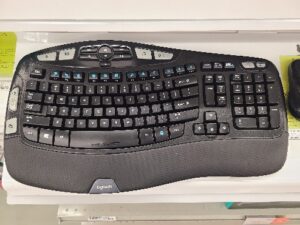 Some have slight keyboard tenting/slope
- Some have keys that rotate outward slightly to accommodate wider frames
- Most look and feel similar to a standard keyboard and are not adjustable
- They are a step between standard and ergonomic keyboards
Final tips:
Make sure and complete the next module to help learn more about keyboards and mice before investing in any new equipment. Did you know that mouse use is one of the most common causes of hand, arm and shoulder discomfort?
Remember the key to making any equipment work for you is ensuring the right posture and that you are using the equipment correctly.