

Module 8: Optimizing Ergonomics
This module includes accessories and solutions that clients frequently ask about to make work easier:
- Workspace organization
- Document holders
- Raised writing surfaces
- Headsets
- Tablet holders
- Laptop usage outside the office
- Footrests
Organizing your workspace
A properly organized workspace in important to help you function well at work. It also prevents you from overreaching for items such as a phone, which over time, can lead to discomfort. It is helpful to organize your desk into 3 zones:
- Zone 1: Frequently used items that you want to keep close such as a keyboard and mouse, pen or pencil, notebook
- Zone 2: Occasional use items positioned at a slight reach beyond Zone 1: Phones, in-line document holders, pen holders, staplers, task lighting controls
- Zone 3: Items adjusted or used infrequently that require a greater reach such as monitors, screen mounted or freestanding document holders, file holders, pictures, lamps, plants
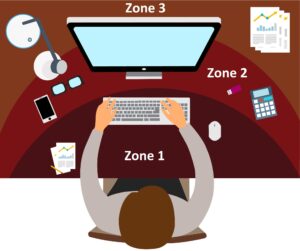
Another way of reducing strain at your workstation is through the use of various desk accessories below that improve posture:
Document holders
Document holders reduce neck strain when reading and allow users to work with less clutter on the desktop. There are three main types:
- In-line document holder
- Sits between the keyboard and the monitor and is tilted back approximately 10-20 degrees for easiest viewing
- Requires user to look down frequently which can increase stress to the neck and upper back. However, this document holder is not as stressful to the neck as reading documents that are flat on the desk and it also prevents neck rotation to one side Example: https://askergoworks.com/products/vu-ryte-in-line-document-holder
- Screen mounted document holder
- Attaches to the side of a screen, preferably on the dominant eye side
- Allows proper document height and tilt in line with your screen
- Works well as long as the screen is not extra wide and multiple screens are not used Example: https://www.officedepot.com/a/products/437016/3M-Monitor-Mount-Dual-Document-Clip/
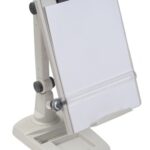 Free standing document holder
- Positioned on the side of screen, usually the dominant eye side
- Allows proper document height and tilt in line with your screen
Raised writing/drawing surfaces
Writing at a computer desk forces you to look down, rotate your neck and reach to the side to write. Working this way frequently or for long periods of time can become uncomfortable. Raised writing surfaces offer a solution and can double as in-line document holders. Examples:
- https://themicrodesk.com/
- https://fluidstance.com/products/slope?variant=31763237666896¤cy=USD&utm_medium=product_sync&utm_source=google&utm_content=sag_organic&utm_campaign=sag_organic&gclid=CjwKCAjwnPOEBhA0EiwA609ReZf4ZCgssSCFowzbxmDjnHygzLwKVgUZI4YX5ZiHd_9qz3nVo60_PhoCfYIQAvD_BwE
- Brings the writing surface closer by sliding over the top of the keyboard
- Sloped 10-20 degrees to make viewing and writing easier (some are adjustable)
- Can slide forward between the keyboard and monitor when not in use
- Reduces neck rotation and downward bending (flexion)
- The trade-off is some uphill reaching at the elbows, arms and shoulders
- Raised or sloped digital drawing pads are also available
Headset use
If you need to write or type while on the phone, you will most definitely need to use a headset, earbuds or a speakerphone. Cradling the receiver between your neck and shoulder increases muscle tension and joint stress and is a common source of discomfort. Most people prefer a headset or single ear Bluetooth device for privacy and sound quality.
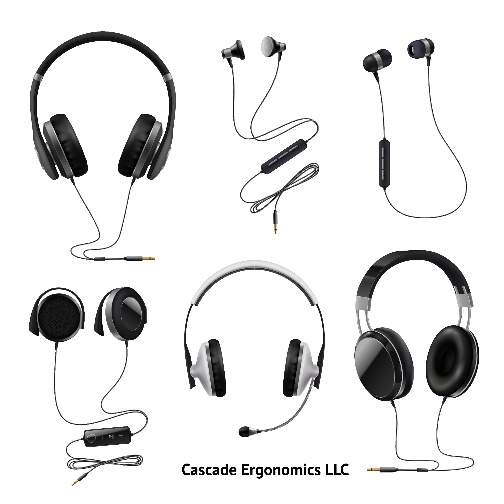 Binaural headsets
- Include a full pair of
headphones, one for each ear - Optimal for drowning out background noise and hearing conversations better with both ears
- Fit over the top of the head which is
not always desirable or comfortable
Monaural headsets

- Include a single earpiece for one ear
- Best when you need to also hear what is happening around you
- Examples include medical reception areas or call centers
- Two types: Over-the-head and Bluetooth single ear piece
Tablet and phone use

- Recommend risers to reduce stress to the neck
- Tablets and phones should be raised to eye level or as close as possible
- A 10-20 degree screen tilt is easier to scan with the eyes and easier on the neck
- Must be positioned closer to the eyes than a larger computer or laptop screen
- Raised tablets are best for viewing only as this is a poor typing position
- An external keyboard and mouse specifically designed for tablets may be added
Laptop use
- Full time laptop use: Module 6 covers recommendations for full time laptop users to properly adjust screen height and add a keyboard, mouse or dock the laptop to an external monitor
- Intermittent laptop use: Those using laptops away from a proper workstation should limit laptop use to under 30 minutes when possible
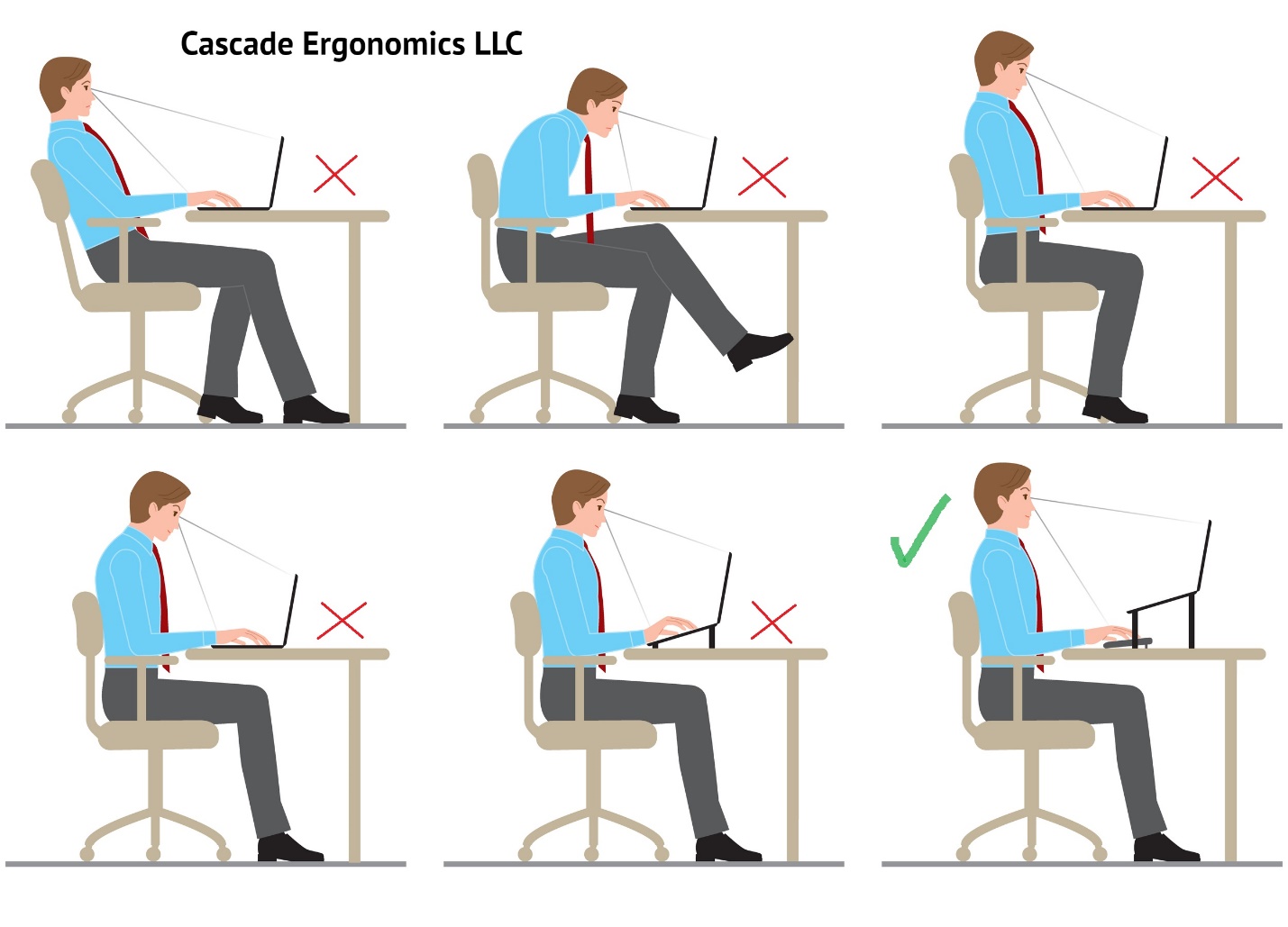
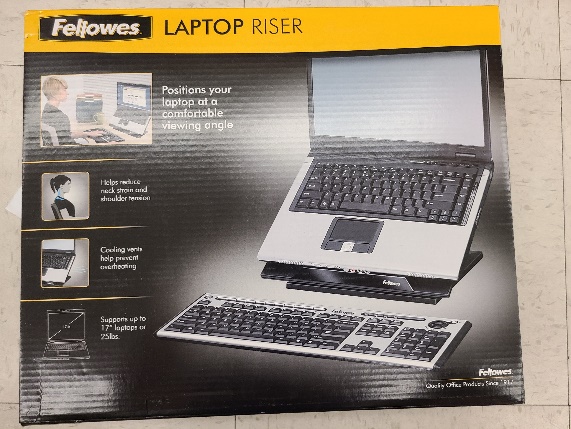
 Travel or meetings: If using laptops frequently for meetings outside of your workstation or travel, recommend using a compact, portable wireless keyboard and mouse, as well as a laptop riser
- Example: Goldtouch Go!2 Mobile Keyboard for PC and Mac https://shop.goldtouch.com/products/goldtouch-go2-wireless-bluetooth-mobile-keyboard-pc-mac
- Example: Goldtouch Go! Travel Laptop Stand/Tablet Stand https://shop.goldtouch.com/collections/laptop-and-tablet-stands, Kensington Easy Riser Go Adjustable Laptop Riser https://www.kensington.com/p/products/ergonomic-desk-accessories/laptop-risers-monitor-stands/smartfit-easy-riser-go-adjustable-ergonomic-laptop-riser-and-cooling-stand-for-up-to-17-laptops/
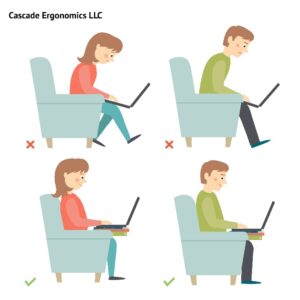 Short periods of laptop use: If using the laptop for short periods of time without an external keyboard and mouse:
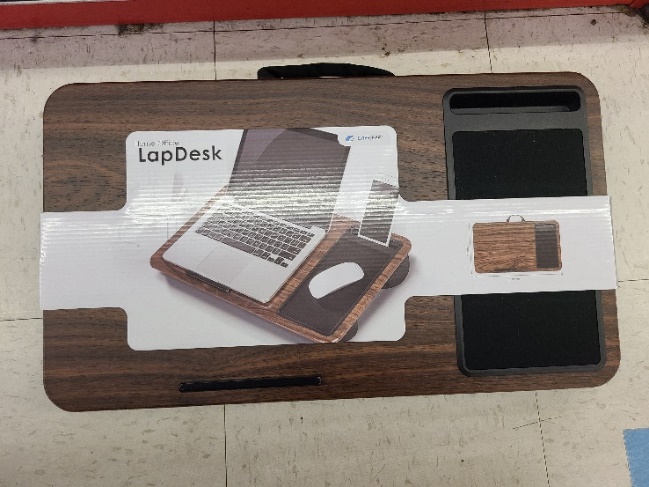
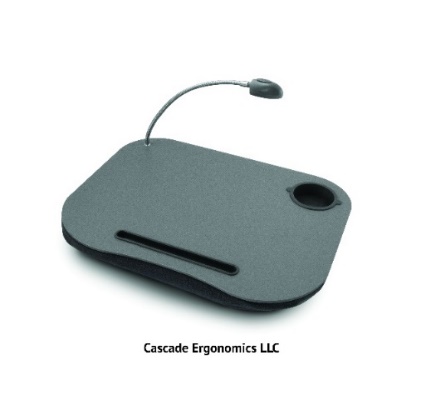
- Place the computer in your lap or on a laptop tray so that arms are positioned near your sides at the proper height and angle.
- Tilt the screen backward 10-20 degrees to reduce at least some downward bending of the neck.
- If sitting at a standard height desk or table, raise the seat as needed to prevent uphill reaching to the keypad.
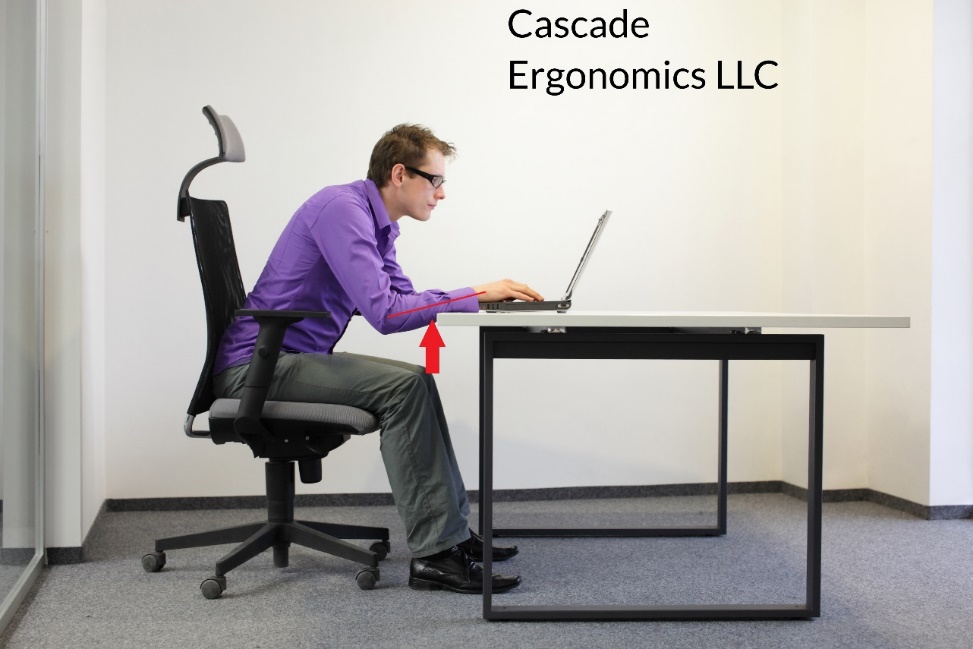
Laptop Tray Examples
Footrests
Footrests are a relatively inexpensive and comfortable solution for desk height issues and there are many options. If a footrest is desired, it is often best to purchase a model that is adjustable. Even the least expensive models tend to work well but be sure to research the size and features you desire. Many models rock or tilt to allow muscle activity and different ankle postures. Some have surfaces designed to massage your feet when shoes are off.
Soft foot rests are the shape of a half foam roller. They can be used with the flat side down for a fixed position or with the flat side up to allow rocking but these types of footrests are not height adjustable. Click for an example of a soft foot rest: https://ergofoam.co/
Height adjustable rocking footrest example: https://www.kensington.com/p/products/ergonomic-desk-accessories/ergonomic-foot-back-solutions-for-back-support/kensington-solemate-comfort-footrest-with-smartfit-system/
Space-saving, nonadjustable footrest example: https://www.kensington.com/p/products/ergonomic-desk-accessories/ergonomic-foot-back-solutions-for-back-support/space-saving-foot-rest/
Be sure to subscribe at Cascadeergonomics.com for the latest product reviews and recommendations.