

Module 5: All Mice Are Not Created Equal
Using a mouse seems really straight-forward. However, when you see the potential stressors below, it is not surprising that mouse use is one of the most common causes of work discomfort. The important factors are your posture and how you use the mouse. You can purchase the fanciest ergonomic products on the market but if your posture is slightly off, you will still hurt.
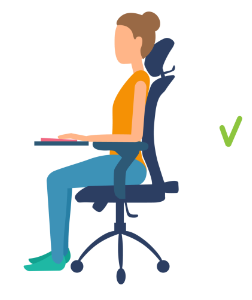 Start with proper posture
- Make sure you are working at the proper height with elbows relaxed under shoulders and forearms level with the keyboard (elbows bent approximately 90-110 degrees).
Keep mouse close to your keyboard

- Keep arm close to the body when using a mouse
- Avoid rotating shoulder and wrist out to the side
- Reaching can cause discomfort in the shoulder, arm or wrist
- This photo illustrates improper reaching and shoulder rotation
Mouse height
- Make sure the mouse is on the same height surface as your keyboard. You do not want to reach up, down or out to the side for the mouse.
- If using a keyboard tray with an adjustable mouse platform, the mouse may sit 1-2” above or below the keyboard which may be OK for some but not all users.
- Certain keyboard tray models allow you to swivel the mouse platform over the numeric pad to keep the mouse closer to the body.
The following are a few examples of keyboard trays with adjustable mouse platforms:
- https://www.humanscale.com/products/keyboard-systems/keyboard-systems
- https://workriteergo.com/banana-board/
- https://www.amazon.com/Safco-Products-Adjustable-2135BL-Ergonomic/dp/B0033UNHQ8
- https://www.ergoprise.com/dual-mouse-keyboard-tray-system
Note: All product images and links are only used as examples without any intent to recommend one product over another.
Avoid compression
 Try to avoid resting your wrist or forearm on the hard desk surface as this will compress sensitive tissues and reduce circulation.
Mouse rests
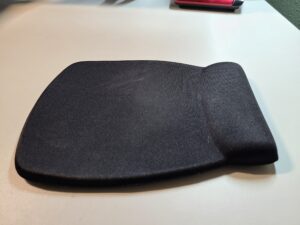
- Mouse pads with a cushioned bump/rest at the wrist are NOT recommended. They increase compression over the carpal tunnel and pin the wrist into one position. (Exception: Mouse rests might be useful when uphill reaching cannot be avoided to promote straighter wrists and provide some cushion).
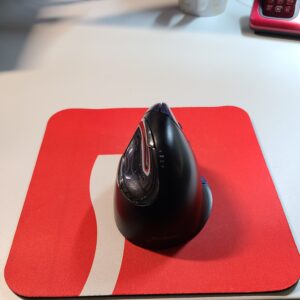 Recommend using a soft, flat mouse pad to provide a small amount of cushion (see image on the right).
Relax hand
- Avoid firmly gripping the mouse
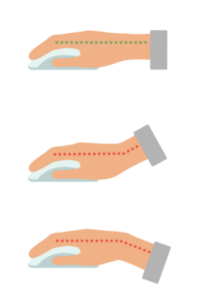
Keep wrist level
- The wrist should not be flexed downward or extended
backward. - It should be straight and level with the forearm
Mouse control
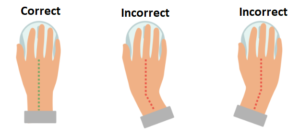 Avoid controlling the mouse with side-to-side wrist movements. Instead, maintain straight wrists by moving the mouse with your arm and pivoting at the elbow.
Special note
Many workers experience a build-up of discomfort in their mousing shoulder or wrist from reaching or rotating the shoulder too far out to the right side. The most common reason for this is the extra length that numeric pads add to keyboards on the right side. Fortunately, helpful solutions exist below.
Solutions
1. Compact/shorter keyboards with a numeric pad
- Helps keep the shoulder and arm in a little closer
- Compact keyboards may not fit larger hands or wider shoulders
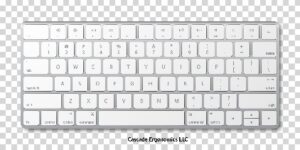 2. Standard keyboard without numeric pad
- For users who do not need a numeric pad
- Prevents reaching to the side for your mouse

3. Standard or ergonomic keyboards with removable numeric pad
- Allows you to remove the numeric pad when not in use and move mouse closer
- Allows the option of moving the numeric pad to the left side
- There is also a keyboard with a number pad that slides in and out: https://www.thehumansolution.com/posturite-number-slide-mini-arch-keyboard.html
4. Adjustable mouse platforms on keyboard trays
- Allows user to swivel the mouse in closer over the top of the numeric pad. Example https://www.humanscale.com/products/keyboard-systems/keyboard-systems
 5. Learn to use a mouse on the left side
- WHAT? It’s actually easier than it might sound
- May take one or more days to adapt
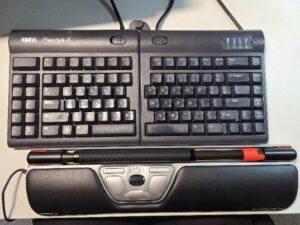
7. Switch to a RollerMouse system (image on the right)
- Some learning involved but very comfortable
- Keeps wrists more neutral, provides comfortable wrist rests, allows use of one or both hands
- Does not work with wavy keyboards or built-in palm rests
Types of mice:
Mouse options and sizes are numerous. Some can be used both right and left-handed if you need to give your dominant hand a rest. Some are vertical, some are semi-vertical, and at least one model can be adjusted to multiple angles.
Vertical mice
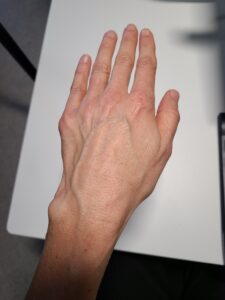 The theory behind vertical mice is sound. These mice allow a more neutral “handshake” position to reduce fatigue at the wrist and forearm and avoid pressure over the sensitive carpal tunnel area.
When using a standard mouse, palms are rotated all the way down toward the desktop. This position rotates the forearms to their end range.
The opposite end range motion occurs when palms are rotated all the way up toward the ceiling. These end range positions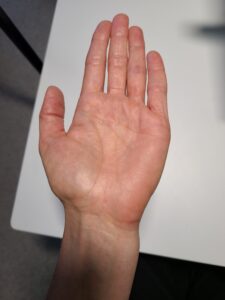 may increase fatigue.
Adopting a more neutral “handshake” posture, halfway between palms up and palms down, relaxes the forearm and wrist and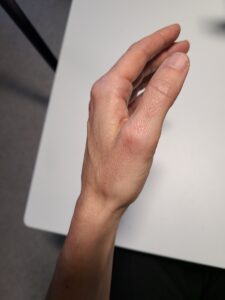 prevents pressure over the carpal tunnel.
Pros of vertical mice:
- More relaxed, neutral forearm and wrist posture with less hand compression
- Uses more arm motion and less wrist motion
Cons: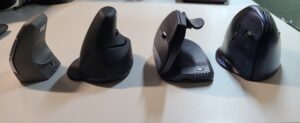
- May be too tall for keyboard tray spaces
- Harder to transport due to size
- Not recommended for workers with wrist or hand discomfort on the pinky side which may contact the desk
- Slight but simple learning curve for some
- Not all prefer a vertical position
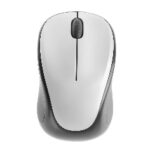
Standard mice

Pros:
- Easy to use, portable and inexpensive
- Many can be used in either hand
- Different sizes available for some models
Cons:
- Palm down position can lead to fatigue or compression at the wrist/carpal tunnel
Relaxed or semi-vertical mice (15–45-degree slope)
Pros:
- More relaxed posture and less compression over the wrist
- Very comfortable
Cons:
- Some pressure remains over wrists and carpal tunnel
Trackball
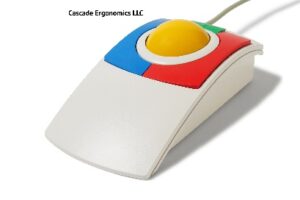
Pros:
- Cursor is moved by the rollerball so you do not have to move the mouse
- Helpful for those with tight work spaces or discomfort with wrist movements
- Precision is good for video editing
Cons:
- More repetitive motion is created at the fingers which may not be comfortable
- If the rollerball is at the thumb, more repetitive stress is concentrated at the thumb joint
Trackpad

Pros:
- Allows more dexterity for many work functions such as pinch zoom, image rotating, 3-D touch, fine cursor actions and full gesture motions
Cons:
- Takes up more room
- Requires more finger movement which increases the fatigue factor
- Clients with a trackpad often keep a mouse handy for other tasks
RollerMouse
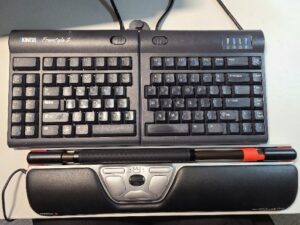
Pros:
- Very comfortable wrist rest that allows you to keep arms in close
- Eliminates gripping and can be used by both hands
- Reduces outward reaching or rotation for a mouse
Cons:
- Cannot be used with wavy ergonomic keyboards or attached palm rests
- May slightly increase the reach to the keyboard if the larger palm rest is used
- Small learning curve and more expensive than other mice
Foot mouse system (example: https://kinesis-ergo.com/foot-pedals/)
Pros:
- Yes, it is exactly how it sounds, a foot controlled mouse
- For more extreme discomfort or accommodations
Cons:
- Legs cannot be stretched when operating the cursor
- Increases muscle tension in the legs vs. hands and arms
- May be slower and less accurate than a standard mouse
- May or may not be able to scroll
Sizing
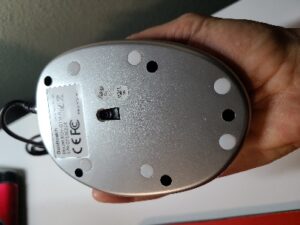
Some companies provide a helpful sizing chart for their products. However, most standard mice are designed to fit as many users as possible with one size. The mouse should fit the palm of your hand comfortably without feeling too bulky or too small.
Signs that a mouse may be too large:
- Feels bulky, clumsy, heavy or the hand tires easily
- The front edge of the mouse extends way beyond the fingertips
Signs that a mouse may be too small:
- Only the fingers and front part of the hand contact the mouse
- Fingers hang over the front edge more than a few millimeters
- You may find yourself moving the wrist side to side more than usual
| Problem | Description | Solutions |
| Mouse is on a different height surface than the keyboard | When using a keyboard tray that does not have room for a mouse, the mouse may have to sit above the typing surface on the desk. Occasionally desks are pieced together from different height sections and the mouse may sit at a different height than the keyboard.
This can lead to discomfort from the hand all the way up to the neck. |
|
| Mouse is too far to the right side | Causes reaching and shoulder rotation when using the mouse. This can lead to shoulder or wrist discomfort. |
|
| Pain, numbness at the palm, wrist or fingers | Caused by pressure from the mouse or desk surface at the carpal tunnel. Can be aggravated by uphill reaching, compression from the front edge of the desk, pressure from a mouse rest, or the wrong sized mouse. Can also be caused simply from overuse. |
|
| Pain, numbness on pinky side of hand or wrist | Caused by compression from the desk, repetitive side to side motions, reaching uphill, backward bending of the wrist, reaching out to the side for the mouse, armrests getting in the way |
|
| Fingers get stiff and sore | Occurs with excessive gripping and tension in the hand and fingers. May occur with overly repetitive motions such as using the scroll wheel or clicking mouse. May occur if mouse buttons are stiff or mouse does not fit properly. |
|
| Top or sides of wrist hurt | Can occur from backward bending at the wrist, excessive side to side motion, or uphill reaching |
|
| Arthritis pain in hands | Can be aggravated by repetitive motion |
|
Final notes:
Whenever possible, try before you buy at office supply stores.
 Remember to take frequent breaks to rest your hands:
- Relax and shake out hands, take several deep breaths
- Stretch hands throughout the day
- Perform at least one of the two above activities above 1-2 times per hour