

Module 3: Don’t Let Your Desk Be In Charge
Biggest piece of the puzzle!
One desk size does not fit all. This is where many problems start.
Standard height desks are approximately 29” tall plus or minus 1-2 inches. This height allows individuals over 6 feet tall to fit their legs under the desk. That means standard desks are literally too tall for a majority of workers who are under 6 feet tall! This can lead to a whole range of discomfort issues.
Thankfully, we have so many options. The challenge is choosing the correct desk for your needs and budget and then getting you adjusted properly.
Fixed desks
If you are under six feet tall and sitting at a standard height desk, you will likely have to raise the chair to the top height and add a footrest to achieve proper fit. Much of the workforce is set up this way. If you prefer not to work with a footrest, there are other options listed below.
Getting started: Achieving proper arm angle is the key
Position mouse and keyboard
- Roll your chair up to the desk.
- Pull the keyboard and mouse close to the front edge of the desk.
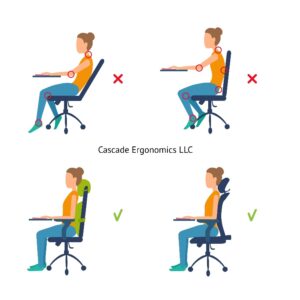
Shoulder posture
- Relax shoulders and arms at your sides without upward pressure from armrests.
Elbow angle
- Elbows should be relaxed almost directly under the shoulders to prevent forward reaching. Forward reaching causes tension in the shoulders, neck and arms.
- Elbows should be bent around 90-110 degrees for typing.
Forearm angle
- Adjust chair height until forearms are level with the keyboard when typing.
- Avoid reaching uphill to the keyboard. Uphill reaching causes awkward wrist posture, compression against the edge of the desk, and increased tension in the arms and shoulders.
- Forearms should not be propped on the desktop as this leads to hard pressure on sensitive tissues.
- Avoid this common mistake: If the desk is too tall and forces you to reach uphill, do NOT raise armrests in an effort to make your forearms level with the desktop. This will elevate the shoulders, increase muscle tension and add pressure from arm pads.
Note: A little trick for those suffering from wrist/hand discomfort or numbness is to lower the typing surface 1-2 inches below elbow height so the forearms are angled slightly downhill to the keyboard. This relieves pressure over the palms and can significantly improve comfort.
Adjustable height desks
- If using an adjustable height desk, raise or lower desk until forearms are level. It’s that simple and you do not have to raise or lower your chair.
Leg clearance under the desk
- To avoid reaching uphill to the desktop, the chair must be raised high enough that only a small amount of leg clearance remains under the desk.
Hip and knee angle
- Note: Raising your chair may affect hip and knee angles and feet may not rest squarely on the floor.
- Hip and knee angles should be 90-110 degrees with thighs level or angled slightly downhill for comfort.
- A footrest may be required for feet to rest squarely on a firm surface and to ensure proper hip and knee angles.

 CAUTION
Avoid using desks with a drawer or a “skirt”/overhang in the front. Even a thin drawer or skirt will hit your legs, prevent you from raising your chair to the proper height and will force your forearms to reach uphill to the desktop.
In summary:
- Pull your keyboard and mouse close to you to prevent forward reaching.
- Raise your chair (or lower an electric desk) until forearms are level.
- Add a footrest if needed to maintain proper hip and knee angle and foot support.
- Follow the “GOLDEN RULE” of making sure the elbows and the hips are each bent approximately 90-110 degrees.
Troubleshooting guide
| Problems | Description | Solutions |
| Desk is too tall: Forearms reach uphill to the keyboard | Common source of pain or numbness in the wrists and hands as the front edge of the desk digs into the soft tissues. Increases tension and discomfort in the arms, shoulders and neck.
Wrists bend or flex downward to type causing pain or numbness in the wrists, hands and fingers.
|
|
| Arms reach forward to the keyboard. Elbows do not rest under shoulders |  Very common source of neck, shoulder, upper back and arm discomfort. Every inch that elbows reach forward greatly increases tension in these areas. Propping forearms on the hard desk surface may irritate or cause numbness in the wrists and hands.  |
|
| Drawer or skirt hit legs and cause uphill reaching | Causes symptoms of uphill reaching above. |
|
| Desk is too short for a taller individual: Legs do not fit under the desk | Causes the worker to lower the chair so that knees are higher than hips. This leads to rounding and discomfort at the hips and low back.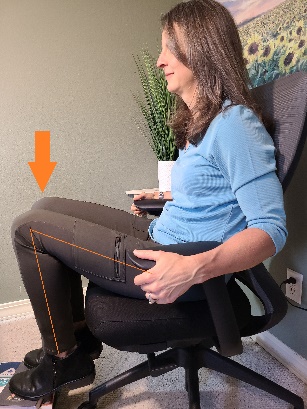 |
|
| Corner or Rounded Desks: Armrests bump into the desk, pushing the worker too far backward when typing | Armrests can bump into corner or rounded edge desks causing excessive reaching to type. This leads to discomfort in the neck, shoulders, back, arms and wrists.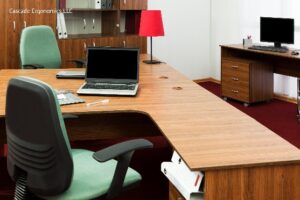 |
|

Keyboard Trays
Keyboard trays are an economical option for those under 6 feet tall. They can lower the desk surface by 4 or more inches which may prevent the need for a footrest. Keyboard trays can also provide more distance between you and your monitors when your desk is small or narrow. Some desks can be purchased with a built-in keyboard tray.
Measurements: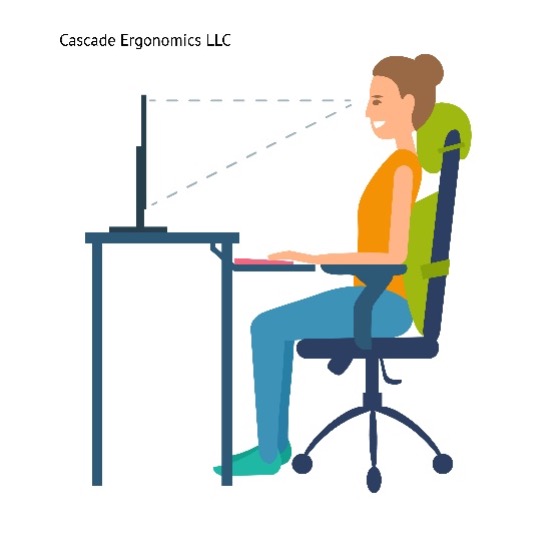
- If a keyboard tray is desired, make sure there is adequate room under the desk for installation of a track without any metal crossbars getting in the way.
- Tracks run from the front to the back of the desk allowing keyboard trays to slide in and out.
- Depending on space under your desk, some tracks are longer and some are shorter.
- Keyboard trays with longer tracks can be pushed all the way under the desk if desired. This is not true for most shorter tracks.
Corner or rounded desk options:
- One option is a corner sleeve that makes the corner space more usable and provides a typing surface with less reaching (click links for examples of corner sleeves):
- https://www.newfanglednetworks.com/products/16diameter-fits-desk-1-1-5thick
- https://www.pinterest.com/pin/757730706028807831/
- A second option is a keyboard tray made especially for corner or rounded desks (click for an example): https://www.upliftdesk.com/corner-sleeve-by-uplift-desk/
- Without a corner keyboard tray, it may be difficult or impossible to get a chair close enough to type if armrests bump into the desk and cannot be lowered under the desk.
- Anytime a keyboard tray is added to a desk, the monitors need to be moved forward and the heights need to be readjusted (more on this in later modules).
Adjustable height sit-stand desks
Adjustable height desks are a convenient solution for workers of most heights. Instead of raising or lowering your chair and adding a footrest, they allow you to dial in the proper desk height and elbow angle using a button for both sitting and standing. Here are some things to keep in mind:
- Many models raise high enough for standing but do not lower below a standard 29” height.
- Thus, workers under 5’11 or 6’ tall still have to raise their chair and use a footrest for proper elbow angle.
- Shorter workers should look for models that lower down to 22 or 23”, which may cost a little more, if they do not wish to use a footrest.
- Average height workers under six feet tall tend to do well with models that lower to 25″ and some will find a fit at 27″.
- Taller workers must measure to ensure that the desk will raise high enough for proper standing posture. Some desks will require taller models or extension kits for taller users.
The bottom line: Before investing in an adjustable height desk, all clients should take measurements to ensure fit.
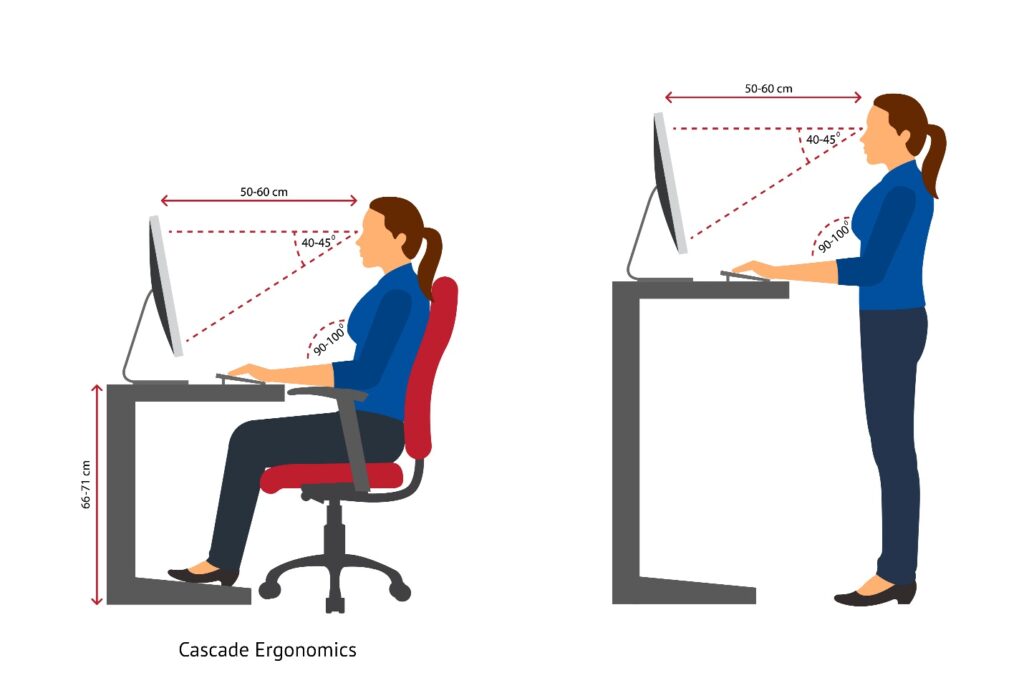
Fitting an adjustable height sit-stand desk
- The desk height should be set to the height of your forearms.
- Simply raise or lower the desk height until you achieve the proper elbow angle, with arms level or slightly downhill when typing. It’s that easy.
- Arm angle for standing looks the same as sitting.
- If your adjustable height desk does not lower enough for proper elbow angle, and leaves you reaching uphill, then raise your chair and add a footrest just as you would when using a fixed desk.
Bonus: Sit-stand desk measurement guidelines
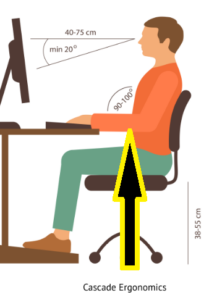
How to ensure an adjustable height desk lowers far enough for you:
- Sit in your chair with feet resting squarely on the floor.
- Drop the armrests out of the way so they do not interfere with measurements.
- Bend elbows to approximately 90 degrees as if you were typing (keep elbows under shoulders)
- Measure from the floor to the undersurface of your forearms (in the middle of the forearm). See photo.
- Subtract one inch from this measurement to account for the approximate thickness of a keyboard.
An adjustable height desk should lower to this measurement if you do not wish to raise the chair and add a footrest.
How to ensure an adjustable height desk raises high enough for you:
- Stand with elbows bent approximately 90 degrees as if you were typing (elbows under shoulders).
- Measure from the floor to the undersurface of your forearms (middle of the forearm).
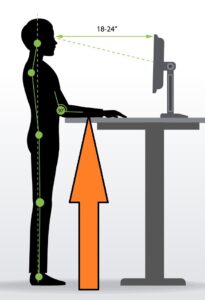
- Subtract one inch from this measurement to account for the approximate thickness of a keyboard.
An adjustable height desk should raise at least as high as this measurement to ensure proper arm angle.
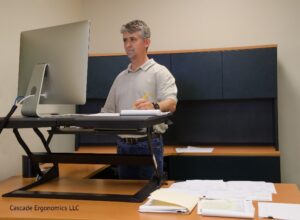
Sit-stand desktop converters
Sit-stand desktop converters sit on the desktop and raise your monitors and keyboard so you can stand while working. There are many different models and features. Converters were developed as a popular alternative to the more expensive electric adjustable height desks. However, the price difference is not as great as it used to be and some home model electric desks are comparable to the price of desktop converters.
Although desktop converters can be a good alternative for the right person, they are not always the preferred choice for the following reasons:
- They may worsen uphill reaching due to the extra 3/4″ thickness of the keyboard tray sitting on top of the desk. Exception: A few desktop converter models have keyboard trays that drop down below the desk surface and are less likely to cause uphill reaching: example https://store.ergotron.com/stand-up-desks.html
- They take up most of the functional desk space.
- Some models are heavy to raise, especially with the weight of one or more monitors.
- Monitor distances cannot be adjusted forward and backward easily.
- Some do not allow the keyboard tray and monitor heights to be adjusted independently of one another, meaning you must sacrifice one adjustment for the other.
- Some typing platforms may feel wobbly.
- At least one model requires tools for adjustments.
In the right situation, desktop converters may provide a simple, economical solution and specific models can help make corner desks more functional. However:
It’s best to consult with an ergonomic specialist on pros and cons of different sit-stand options and proper sizing before making an expensive investment.
Remote ergonomic assessments make all of this easy and efficient for you.